AI Inference on Qualcomm Platforms
This document provides an overview and configuration guide for the AI inference feature of AVT SDK. It covers the parallel inference architecture, configuration file structure, and supported models to help developers build their own AI applications on Qualcomm-based AVerMedia devices.
Parallel Inference Architecture
As mentioned in the AVT SDK Multimedia Framework section, the AVT SDK multimedia framework is built on top of Qualcomm GStreamer plugins. The AI inference component utilizes a GStreamer pipeline that enables parallel processing of multiple AI models simultaneously. The structure of the pipeline is shown below:
---
title: Pipeline Structure in AI Inference Component
---
flowchart LR
    A[Source Image] --> B[qtivtransform]
    B --> C[tee]
    C --> D1[1st inference pipeline] --> E[qtivcomposer]
    C --> D2[2nd inference pipeline] --> E[qtivcomposer]
    C --> D3[3rd inference pipeline] --> E[qtivcomposer]
    C --> D4[4th inference pipeline] --> E[qtivcomposer]
The inference results are sent to the same qtivcomposer and displayed in a split-screen layout.
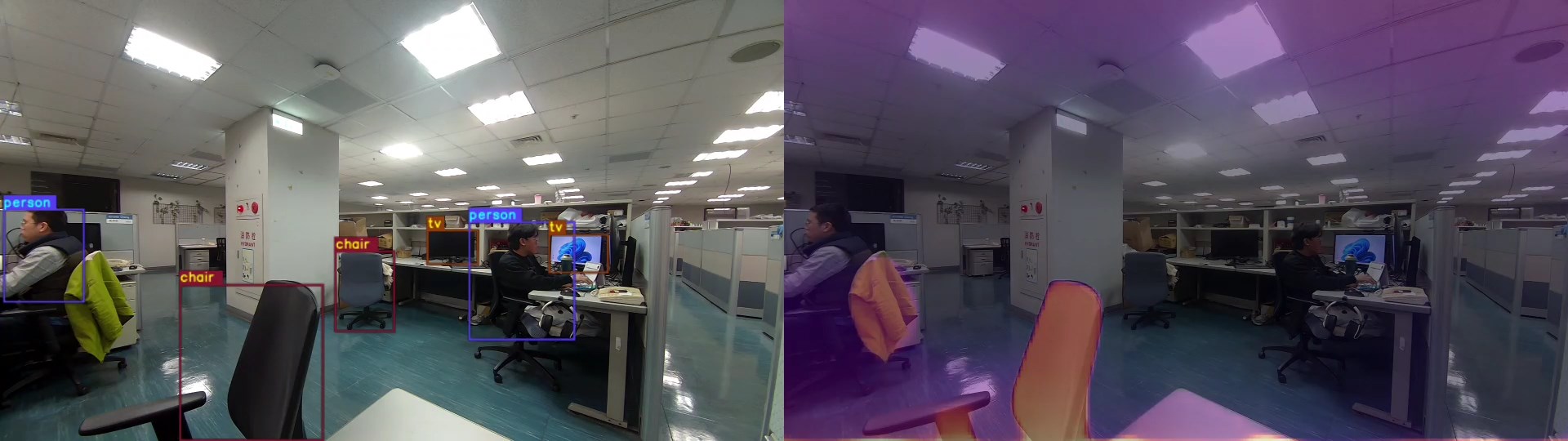
2-model parallel inference
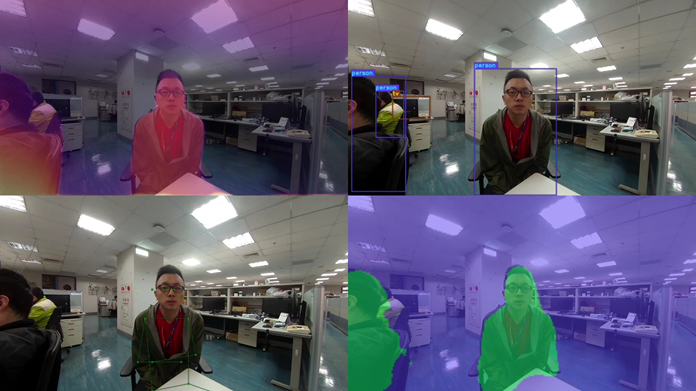
4-model parallel inference
Configuration files
As shown above, the AI inference component supports running multiple inference tasks in parallel. Each inference task is configured with a separate configuration file. The format of each configuration file is as follows:
modelPath=/opt/demo/model/yolov8_quantized.tflite
labelPath=/opt/demo/label/coco_labels.labels
module=yolov8
constant=YOLOv8,q-offsets=<21.0, 0.0, 0.0>,q-scales=<3.093529462814331, 0.00390625, 1.0>;
threshold=40.0
numResult=10
postprocess=object_detection
framework=tflite
device=external
modelPath: The complete path of the AI model being used.labelPath: The complete path of the label file for the selected AI model.module: There are several dedicated modules for specific models within Qualcomm's post-processing plugins. You must choose the correct module corresponding to the model in use. See the table in the Supported Models section for more details.-
constant: If the model is quantized, the parameters for offsets and scales are required in this field.Check quantization parameters with Netron
- Visit Netron and drag a TensorFlow Lite (
.tflite) model to view the model structure. -
Click the top node, such as the node named "image" in Figure 1, and then a "GRAPH PROPERTIES" panel will appear on the right side of the window.
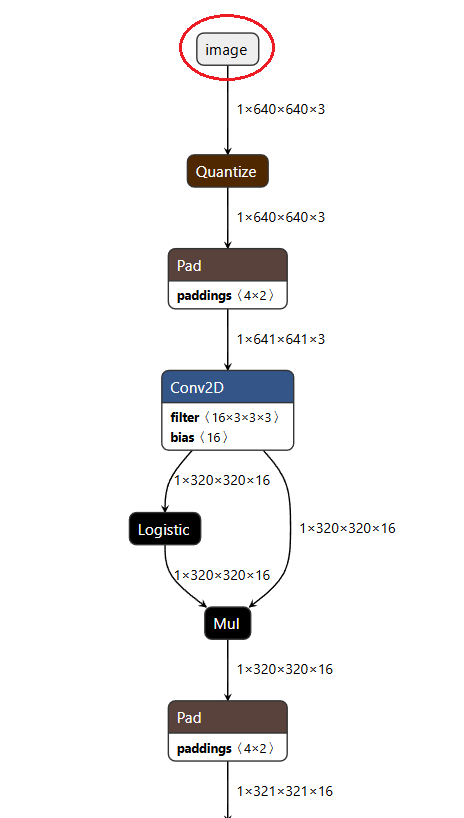
Figure 1: Model structure in Netron.
-
In the "OUTPUTS" section of the panel, as shown in Figure 2, check the "quantization" part of each output.
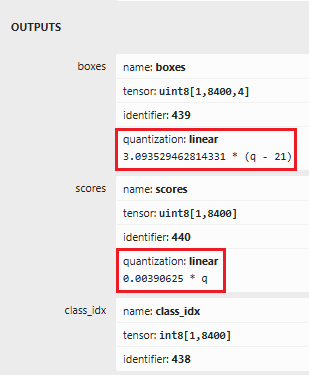
Figure 2: Outputs section in the model (graph) properties panel.
From Figure 2, we can get the scales and offsets for each output as the following table:
output scale offset boxes3.093529462814331 21.0 scores0.00390625 0.0 class_idx1.0 0.0 Note: All the values for scales and offsets should be written as floats.
-
Then in the configuration file, the
constantfield can be formed in the following format:For example, for the model in Figure 2, the
constantfield should be written as:
- Visit Netron and drag a TensorFlow Lite (
-
threshold: A value, between 0.0 and 100.0, used to filter out low-confidence detections. -
numResult: Decides the number of results to display.Note
For segmentation, both
thresholdandnumResultare not utilized, but you still need to include them in the config file. -
postprocess: Specifies the task type. Then the proper post-processing plugin will be selected automatically. For the supported task types and corresponding post-processing plugins, please refer to the table below.Task type Post-processing plugin object_detectionqtimlvdetectionclassificationqtimlvclassificationmonodepthqtimlvsegmentationsegmentationqtimlvsegmentationpose_detectionqtimlvposeSupported task types and corresponding post-processing plugins. Note that the depth estimation task also applies
qtimlvsegmentationplugin. -
frameworkanddevice: Specifies the AI framework and the target hardware device. The currently supported combinations are listed below.htpis the only device option available for QNN, currently.- To achieve the best speed-accuracy tradeoff, choose
externaldevice fortflitemodels anddspdevice forsnpemodels. - Other device options are available but may not provide optimal performance. You could still try them by modifying the config file.
Framework Available devices tflitenone,gpu,externalqnnhtpsnpecpu,gpu,dsp
Supported Models
(This list was last updated on 2025/3/20)
All the models listed below have been verified to be compatible with Qualcomm GStreamer post-processing plugins, hence compatible with AVT SDK. You can find them in Qualcomm AI Hub.
It's highly recommended to use .tflite models as they are not affected by QNN version compatibility issues, unlike .bin models.
| Task Type | Model Name | Module |
|---|---|---|
| Object detection | Yolo-v7-Quantized | yolov8 |
| YOLOv8-Detection-Quantized | yolov8 | |
| Yolo-NAS-Quantized | yolo-nas | |
| YOLOv11-Detection-Quantized | yolov8 | |
| Person-Foot-Detection-Quantized | qpd | |
| Depth estimation | Midas-V2-Quantized | midas-v2 |
| Segmentation | DeepLabV3-Plus-MobileNet-Quantized | deeplab-argmax |
| FFNet-40S-Quantized | deeplab-argmax | |
| FFNet-54S-Quantized | deeplab-argmax | |
| FFNet-78S-Quantized | deeplab-argmax | |
| Pose estimation | HRNetPoseQuantized | hrnet |
Supported models for each task type, and the corresponding module name to be used in the module field of the configuration file.
For the models not listed above, you can still give them a try, but they are not guaranteed to be compatible with AVT SDK.
Further Reading
- Run Inference Demo: Run the inference demo to actually see the AI inference in action.
- How to Download Qualcomm AI Hub Models: Learn how to download Qualcomm AI models from either the Qualcomm AI Hub website or the
qai-hub-modelsPython package.