2. AVT SDK Environment Setup
To quickly set up AVT SDK for QL601 Device, we provide the avt-sdk_1.0.0.tar.gz package.
The avt-sdk_1.0.0.tar.gz package consists of two main components:
-
AVT SDK Installation Package for QL601
- Core libraries and headers
- Development tools and utilities
- Sample applications
-
QL601 TOOLCHAIN
- Cross-compilation toolchain
- Build system configurations
- Platform-specific libraries
- AVT SDK library, header and sample application source codes
Note
All the commands in this section are executed on the host machine.
2.1 Download the AVT SDK Package
To download the AVT SDK package:
-
Click the Download tab in the top navigation bar.

-
Fill out the form in Download page, and don't forget to select AVT SDK
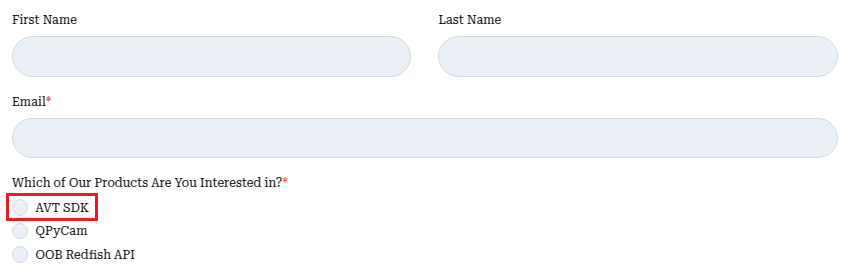
Once you've completed the above steps, the AVT SDK package will be delivered to your email shortly. After extracting the AVT SDK package, you will get the following two packages:
- avermedia-esdk
- avermedia-qcm-ql601_toolchain
2.2 Installation Steps of AVT SDK Installation Package
Note
If you have no idea about how to login to the QL601 device (typically via SSH), please refer to the How to Setup QL601 Development Environment tutorial.
-
Push instatllation package to QL601 device:
-
Install the SDK:
-
Verify installation:
After installation, you can explore the demo applications provided by AVT SDK. For detailed usage instructions and implementation examples, please refer to the Examples section.
2.3 Toolchain
The toolchain is a set of software development tools used to compile, link, and debug code. It includes the cross-compiler and libraries necessary for building software for the QL601 device.
Follow these steps to set up the toolchain:
-
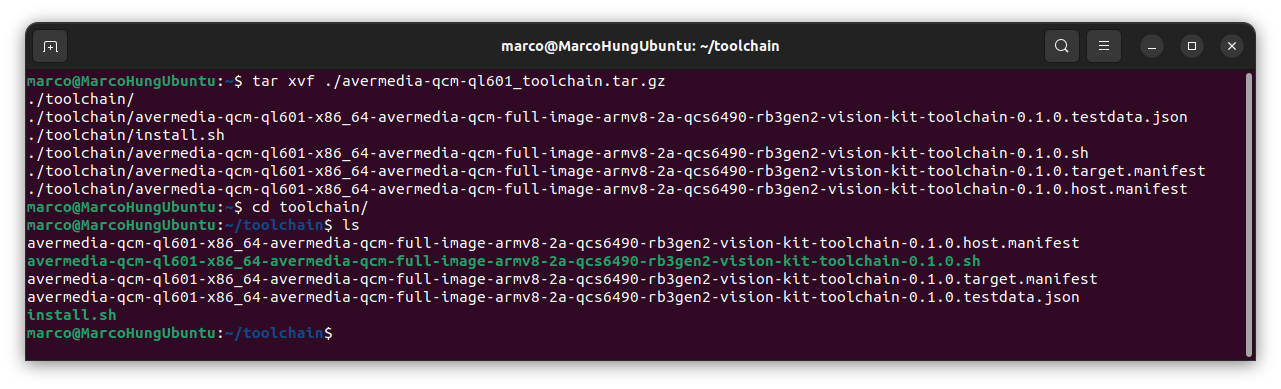
Extract the toolchain package:
-
Run the installation script:
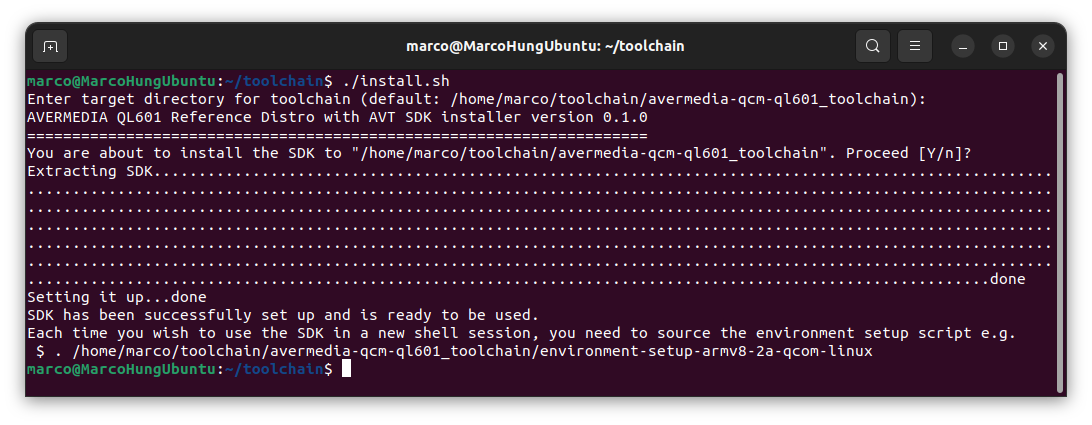
Default Installation Path
The default installation path is
<CURRENT_PATH>/avermedia-qcom-ql601_toolchain -
After installation, locate the CMake toolchain file:
ls <TOOLCHAIN_INSTALL_PATH>/avermedia-qcom-ql601_toolchain/avermedia-qcom-ql601_arm64_toolchain.cmake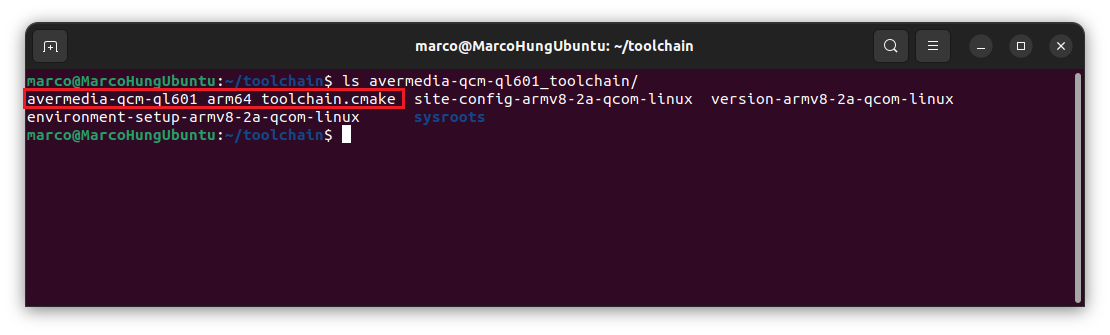
-
Use the CMake toolchain file to cross-compile your project for the QL601 device:
# Copy toolchain file to your project
cp <TOOLCHAIN_INSTALL_PATH>/avermedia-qcom-ql601_toolchain/avermedia-qcom-ql601_arm64_toolchain.cmake /path/to/project/

# Build project
cd /path/to/project
mkdir build && cd build
cmake --toolchain ../avermedia-qcom-ql601_arm64_toolchain.cmake ../
make
Important
If CMakeCache.txt exists, remove it before running CMake with a different toolchain file.