QL601: Precision Green Screen & Seamless CDN Streaming
As demand for video processing and live streaming continues to rise, developers need platforms that combine high performance with customizable media pipelines.
Through cross-compilation and GStreamer plugin development, green-screen removal on QL601 with Vulkan shaders enables real-time 1080p60/4Kp30 streaming to CDN platforms such as Twitch and YouTube — all built on the same development flow established for QL601.
The following sections detail the complete workflow, from environment setup and plugin development to real-time streaming deployment.


1. Development environment and version alignment
Set up a matching GStreamer version on WSL
Since QL601 adopts the Qualcomm SDK and ships with GStreamer by default, we need to set up on WSL (Windows Subsystem for Linux) a GStreamer version and plugin combination that matches or is newer than the one on QL601 for development and testing.
For GStreamer plugin development, refer to the official documentation: GStreamer and GStreamer Vulkan.
To develop Vulkan plugins for GStreamer, it is recommended to install the gst-plugins-bad package. This package includes plugins such as vkimageidentity, which serve as good starter examples. Depending on project needs, OpenGL can also be used for image processing; however, this article focuses on Vulkan + GBM (Generic Buffer Management) on the QL601 platform to achieve real-time image processing with optimal performance.
Prepare the following components on WSL (aligned with QL601 versions):
- GStreamer Core and Base/Good/Bad packages (with Vulkan support enabled)
- Vulkan SDK
- glslangValidator / SPIR-V Tools (GLSL → SPIR-V compilation)
2. Getting started with vkimageidentity
Reference source location: ext/vulkan (gst-plugins-bad)
Developers new to GStreamer Vulkan plugin development can start with vkimageidentity. It is the simplest sample plugin and simply outputs the input image directly.
How to test (can be run directly in the WSL environment):
If you can see the test pattern, the environment is installed correctly and the Vulkan plugins are functioning properly.
Shader test
The vertex shader used by vkimageidentity (such as identity.vert) can be modified for verification:
#version 450 core
layout(location = 0) in vec4 inPos;
layout(location = 1) in vec2 inTexCoord;
layout(location = 0) out vec2 outTexCoord;

void main() {
   gl_Position = inPos;
   outTexCoord = inTexCoord;
}
Recompile after making changes. If the output image shows the expected differences, you can confirm that the shader compilation and pipeline are working properly.
3. GBM and Vulkan integration
GBM (Generic Buffer Management) is a Linux buffer interface. With dma-buf, components can share GPU-usable image buffers, reducing latency and copies.
Why use GBM?
- Zero-copy sharing: Export/import via
dma-buf, allowing V4L2, GStreamer, display composition, and Vulkan to share the same memory, reducing CPU involvement and latency. - Data stays on the GPU: Avoid unnecessary CPU memory copies, resulting in lower latency and higher throughput.
Relationship with GStreamer
- Use
video/x-raw(memory:GBM)caps to express GBM memory; upstream and downstream must negotiate and agree on the memory type and pixel format (such asNV12,BGRA).
Relationship with Vulkan
- Import GBM/dma-buf into Vulkan via
VK_EXT_external_memory_dma_buf, processing directly on the GPU to form a zero-copy pipeline.
Value for QL601
- Most QL601/Qualcomm plugins (such as
qtivcomposer,qtivtransform) use GBM. If your plugin supports GBM, it can work with the whole hardware-accelerated chain.
Minimal viable validation
- Common caps (examples):
- Display path minimal validation:
- Verify the GBM negotiation chain:
Minimal GBM negotiation example
flowchart LR
    SRC["v4l2src /dev/video4"] --> CAPS1["video/x-raw,<br>NV12 1920x1080 60fps"]
    CAPS1 --> QT["qtivtransform"]
    QT --> CAPS2["video/x-raw(memory:GBM),<br>BGRA"]
flowchart LR
subgraph CONTINUE
CAPS2["video/x-raw(memory:GBM),<br>BGRA"]
end
CAPS2 --> VKID["vkimageidentity"]
VKID --> SINK["fakesink"]4. Develop a custom green-screen removal plugin (avtColorKeyProcessor)
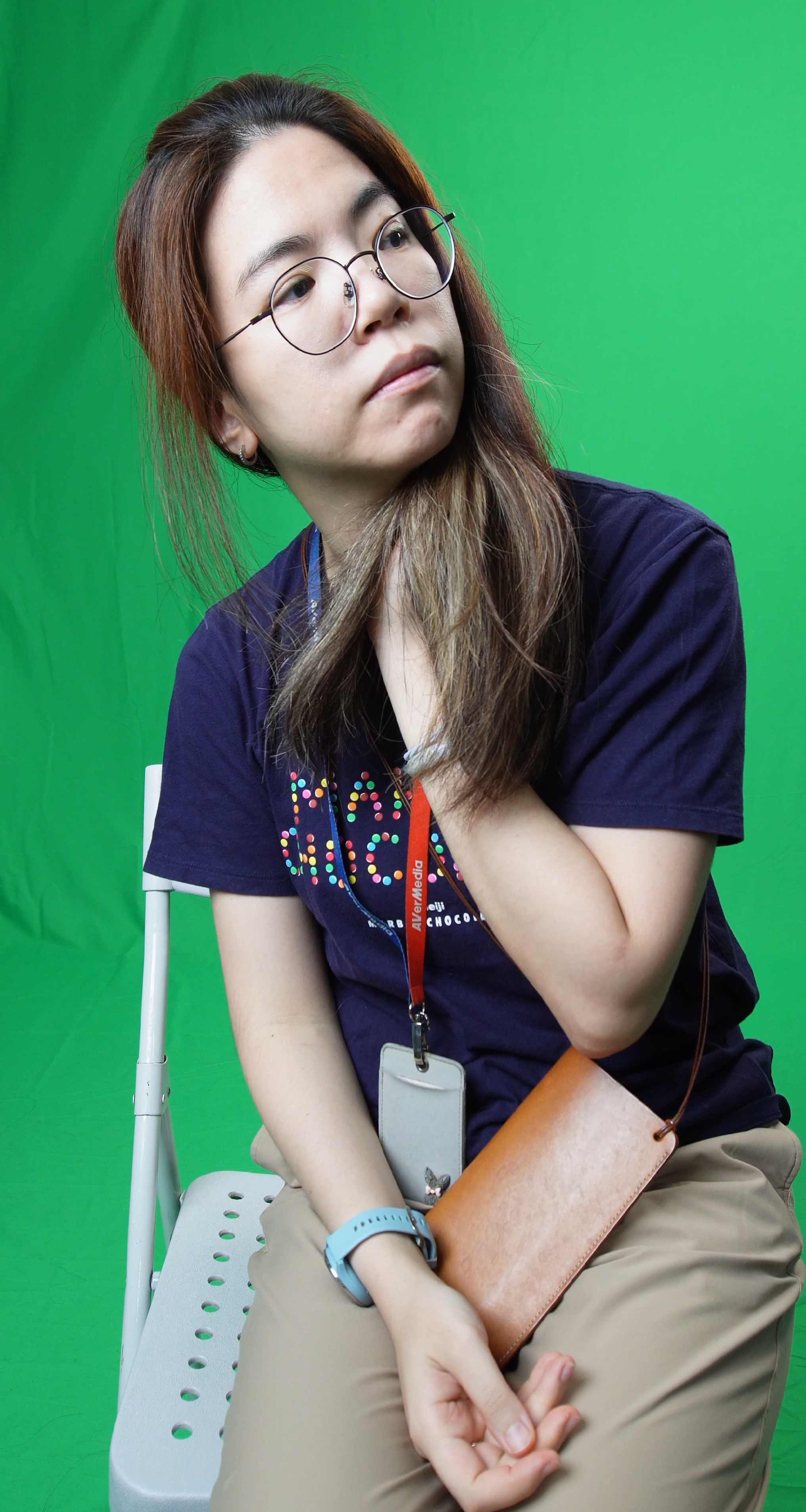
On this basis, we developed a custom green-screen removal plugin:
1. Features
- Vulkan acceleration: All processing runs on the GPU for best performance.
- Precise green-screen removal: Our own algorithm improves common chroma key issues.
- Controls: Settings like
background-remove-level,edge-smooth-levelfor fine control. - Background replacement: Load a new background image and composite.
- GBM integration: Works with GBM buffers used by the Qualcomm SDK to avoid conversions.
2. Chroma key basics
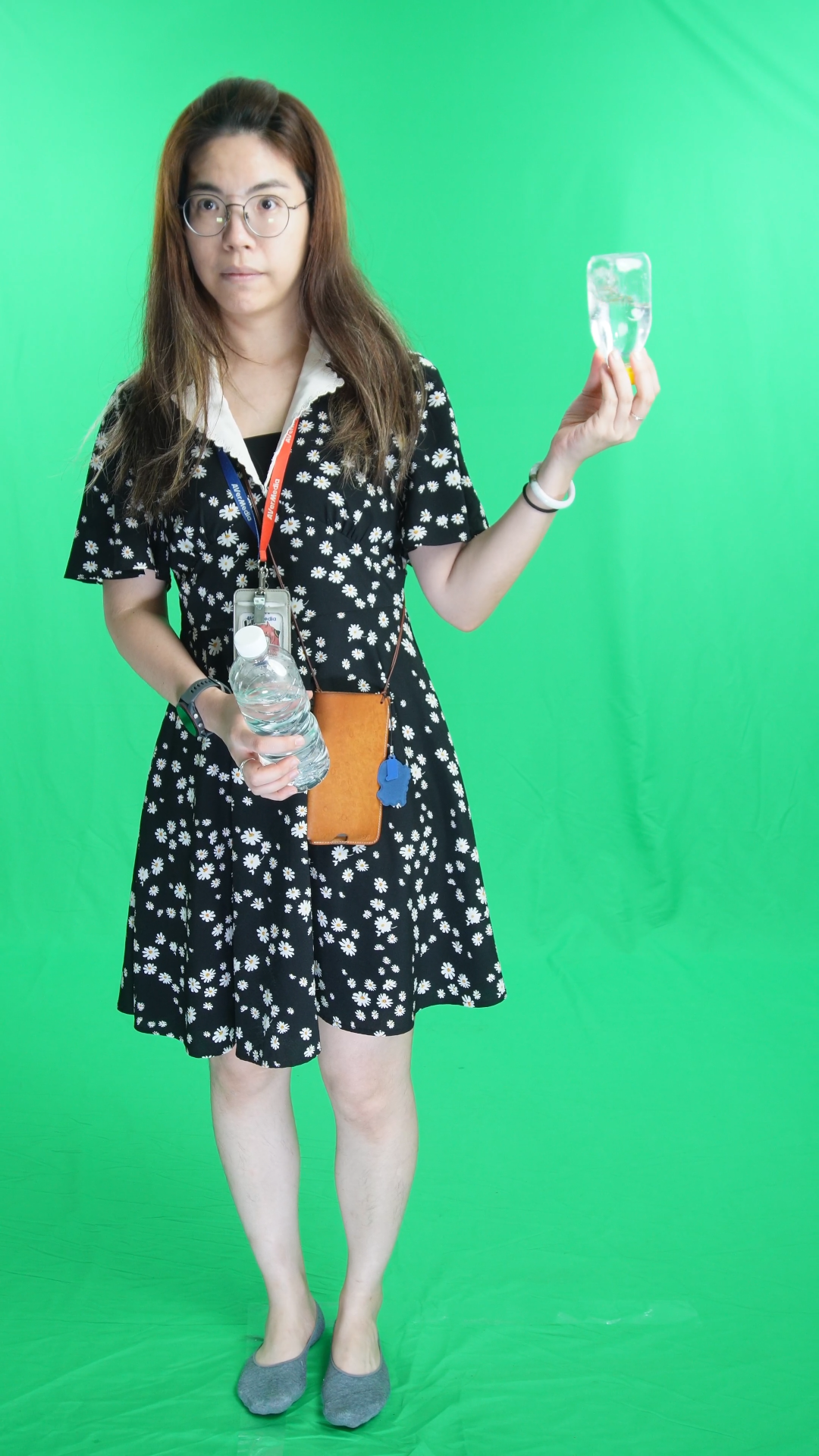
Chroma keying removes a specific color (usually green or blue) and then combines the subject with another background. It is widely used in:
- Live streaming and virtual backgrounds: e.g., presenters placed into dynamic scenes.
- Film/TV post-production: Background replacement and effects.
- Online education and conferencing: Speakers can appear in front of teaching materials.
- AR/VR applications: Integrate real people into virtual scenes.
3. Common challenges
- Aliased edges and hair handling: Fine regions are prone to residuals or missing parts.
- Color spill: Green or blue tinting around edges reduces naturalness.
- Uneven lighting: Uneven on-site lighting causes inconsistent results.
4. Our improvements
We developed our own green-screen removal algorithm, and:
- Fully GPU-accelerated to ensure real-time processing performance.
- Detail preservation: Enhanced edge and hair handling for more natural subject-background blending.
- Natural color restoration, minimizing spill.
- Reference original background: Refer to the original green background before the subject enters to maintain more consistent removal.
- Integrated on the QL601 platform for seamless interoperation with Qualcomm native GStreamer plugins, suitable for professional streaming and imaging scenarios.


5. avtColorKeyProcessor design highlights
- Render directly to GBM buffers via Vulkan (import external memory with
VK_EXT_external_memory_dma_buf) to reduce data movement. - Real-time compositing: Combine the keyed foreground with a new background.
- Adjustable settings: e.g.,
shadow-strength,edge-smooth-level,hue-shiftfor scene-specific adjustments.
5.1 Extend vkimageidentity with a custom fragment shader and GBM integration (processing flow)
- Base copy and naming
- Copy
gst-plugins-bad/ext/vulkan/vkimageidentityinto a new plugin (e.g.,avtcolorkeyprocessor). - Write a custom fragment shader
- Add
colorkey.fragto implement background removal, edge smoothing, and foreground/background compositing as needed. - Example:
- Pads and GBM negotiation
- Sink/Source pad templates declare support for
video/x-raw(memory:GBM)with explicit format (recommendBGRAfor both input and output to facilitate shader sampling). - If the actual source is
NV12, useqtivtransformupstream to convert toBGRAwithmemory:GBM:
- Import GBM dma-buf into Vulkan
- Obtain the dma-buf fd corresponding to GBM from the
GstBuffer. EnableVK_KHR_external_memory/VK_KHR_external_memory_fdto create the inputVkImagevia external memory import, and then create the correspondingVkImageViewas the shader sampling source. - Prepare GBM output
- Use the downstream-provided allocator or create a GBM Buffer Object to generate the output buffer, export a dma-buf, and create the corresponding output
VkImageas the render target. After rendering, wrap this Buffer Object back into aGstBuffer(caps remainvideo/x-raw(memory:GBM),format=BGRA) and push downstream (e.g.,qtivcomposer,v4l2h264enc). - Minimal validation pipeline
6. Practical test results
- With a Vulkan + GBM shader architecture, CPU usage is significantly reduced, and image latency stays in the millisecond range.
- When connected with
qtivcomposer, it can stably maintain 1080p60/4Kp30 output.
5. Shader compilation and cross-compilation workflow
1. Shader compilation flow
In Vulkan plugin development, shaders need to go through the conversion process GLSL → SPIR-V → C header:
- Compile GLSL (
.vert/.frag) into SPIR-V (.spv). - Convert into C arrays and embed inside the plugin.
- Load directly at plugin startup and use to build the Vulkan pipeline.
This design avoids the plugin reading external files at runtime, improving stability and portability.
Common tools and sample commands (executed on the WSL dev machine):
# Compile GLSL to SPIR-V
glslangValidator -V -o identity.vert.spv identity.vert
glslangValidator -V -o identity.frag.spv identity.frag

# Convert to embeddable C arrays
xxd -i identity.vert.spv > identity_vert_spv.h
xxd -i identity.frag.spv > identity_frag_spv.h
2. Cross-compilation flow
Key points:
- Clean builds: Clear old caches to keep results consistent.
- Toolchain: Use the QL601 cross-compilation toolchain.
- Automation: Set up automated builds to deploy quickly.
This process ensures that after testing in the WSL environment, the plugin can be quickly compiled and deployed to the QL601 platform.
Using the cross-compilation toolchain:
Deployment notes:
- Copy the compiled .so to /usr/lib/gstreamer-1.0/ on QL601.
- If placed in a non-default path, set GST_PLUGIN_PATH to point to the plugin directory.
6. Integration with Qualcomm GStreamer plugins
Most plugins provided by the QL601 SDK are based on GBM memory, for example:
qtivcomposer: multi-stream compositionqtivtransform: hardware-accelerated image conversionv4l2h264enc: hardware H.264 encoding
So the custom Vulkan plugin must also output GBM format to work with Qualcomm plugins and avoid CPU copies and performance loss.
Example pipeline
- Single-source processing + display:
gst-launch-1.0 -e \
  v4l2src device=/dev/video4 ! \
    "video/x-raw,format=NV12,width=1920,height=1080,framerate=60/1" ! \
    qtivtransform ! "video/x-raw(memory:GBM),format=BGRA" ! \
    avtColorKeyProcessor \
      use_new_background=true \
      background_image="/home/root/newbackground.jpg" ! \
    qtivtransform ! waylandsink sync=false fullscreen=true
flowchart LR
    SRC["v4l2src /dev/video4"]
    SRC --> CAPS1["video/x-raw,<br>NV12 1920x1080 60fps"]
    CAPS1 --> QT1["qtivtransform"]
    QT1 --> CAPS2["video/x-raw(memory:GBM),<br>BGRA"]
flowchart LR
subgraph CONTINUE
CAPS2["video/x-raw(memory:GBM),<br>BGRA"]
end
CAPS2 --> CK["avtColorKeyProcessor"]
CK --> QT2["qtivtransform"]
QT2 --> SINK["waylandsink"]7. Build a real-time streaming pipeline (two video inputs; one with green-screen removal; PIP composited output)
The following example demonstrates a complete real-time keying and streaming pipeline:
gst-launch-1.0 -e \
  qtivcomposer name=mixer \
    sink_0::position="<0,0>" sink_0::dimensions="<1920,1080>" \
    sink_1::position="<500,0>" sink_1::dimensions="<608,1080>" sink_1::rotate=2 \
  \
  mixer. ! "video/x-raw(memory:GBM),format=NV12,width=1920,height=1080,framerate=60/1" ! \
  tee name=mtee \
    mtee. ! queue ! waylandsink sync=false fullscreen=true \
    mtee. ! qtivtransform ! queue ! \
      v4l2h264enc \
        extra-controls="controls,video_bitrate=6000000,video_gop_size=60" ! \
      h264parse config-interval=1 ! tee name=video_tee \
        video_tee. ! queue ! flvmux name=mux_twitch streamable=true ! \
          rtmp2sink location=rtmp://ingest.global-contribute.live-video.net/app/<twitch_key> \
        video_tee. ! queue ! flvmux name=mux_youtube streamable=true ! \
          rtmp2sink location=rtmp://a.rtmp.youtube.com/live2/<youtube_key> \
  \
  v4l2src device=/dev/video2 ! \
    "video/x-raw,format=NV12,width=1920,height=1080,framerate=60/1" ! \
    qtivtransform ! mixer. \
  \
  v4l2src device=/dev/video4 ! \
    "video/x-raw,format=NV12,width=1920,height=1080,framerate=60/1" ! \
    qtivtransform ! "video/x-raw(memory:GBM),format=BGRA" ! \
    avtColorKeyProcessor \
      use_new_background=true \
      background_image="/home/root/newbackground.jpg" ! \
    mixer.
Pipeline visualization
flowchart TD
    CAM1[v4l2src /dev/video2] --> QT1[qtivtransform] --> MIXER[qtivcomposer]
    CAM2[v4l2src /dev/video4] --> QT2[qtivtransform] --> VULKAN[avtColorKeyProcessor] --> MIXER
    MIXER --> TEE1[tee]
    TEE1 --> PREVIEW[waylandsink]
    TEE1 --> TRANS[qtivtransform] --> ENC[v4l2h264enc] --> PARSE[h264parse] --> TEE2[tee]
    TEE2 --> TW[flvmux mux_twitch] --> TWOUT[rtmp2sink Twitch]
    TEE2 --> YT[flvmux mux_youtube] --> YTOUT[rtmp2sink YouTube]
8. Conclusion
This article shows how to do the following on QL601:
- Set up a GStreamer development environment
- Use vkimageidentity to test Vulkan shaders
- Understand GBM and Vulkan integration
- Develop a custom plugin (avtColorKeyProcessor)
- Compile shaders and cross-compile/deploy to QL601
- Integrate with Qualcomm SDK GBM plugins
- Build a real-time green-screen and multi-platform streaming pipeline
With QL601’s hardware acceleration and the flexibility of Vulkan shaders, developers can rapidly build a high-performance green-screen removal and real-time CDN streaming solution. This can be applied to live streaming and virtual conferencing, and further extended to AR/VR, remote education, and interactive entertainment.
Extended applications
The same approach also applies to GPU denoising, color grading, localized effects, and can integrate with AI models to build a complete intelligent audio/video processing platform on QL601.
Accelerate intelligent media workflows with QL601. Unlock GPU-powered green screen removal, real-time streaming, and advanced video effects—all on a single edge AI platform.
Start building smarter video solutions with QL601 today. AVerMedia QL601 (QCS6490)