Run Inference Demo
Before building your own multimedia AI application, it might be a good idea to first run our AI inference demo to explore the capabilities of AVT SDK.
Currently, there are two AI inference demo applications available:
infer_demoinfer_switch_demo
The two applications are almost the same, but infer_switch_demo allows users to reconfigure AI inference at runtime.
Prerequisites
Before running either inference demo, you first need to:
-
Install AVT SDK on your device:
See AVTSDK Environment Setup for details. The installation script will install everything you need except the models.
-
Download the models manually:
You need to download the models manually and put them into the
/opt/demo/modeldirectory on your device. For how to download the models, please refer to the Which models should I download? section. -
Connect the camera to the device
Which models should I download?
Why the model file is not included in the SDK?
Sadly, we cannot include the models because of the license limitations. Therefore, we here provide comprehensive instructions to make sure you can download the models easily.
The AI inference feature of AVT SDK is configured through configuration files. After you install the SDK, several pre-defined configuration files will be installed to the /opt/demo/config directory on your device. You can decide which configuration file you would like to use and then download the corresponding model file.
- The name of each pre-defined configuration file follows the format
-
<task>_<model>_<q for quantized>_<framework>.txt,
indicating all the information you need to download the model.
Abbreviations used in the pre-defined configuration file names
The abbreviations used in the pre-defined configuration file names are as follows:
| Abbreviation | Full name |
|---|---|
cls |
Classification |
depth |
Depth estimation |
det |
Object detection |
pose |
Pose estimation |
seg |
Semantic segmentation |
Table: Task abbreviations
| Abbreviation | Full name |
|---|---|
dlv3_mobilenet_q |
DeepLabV3-Plus-MobileNet-Quantized |
ffnet_40s_q |
FFNet-40S-Quantized |
hrnet_q |
HRNetPoseQuantized |
midasv2_q |
Midas-V2-Quantized |
person_face_q |
Person-Foot-Detection-Quantized |
yolonas_q |
Yolo-NAS-Quantized |
yolov7_q |
Yolo-v7-Quantized |
yolov8_q |
YOLOv8-Detection-Quantized |
yolov11_q |
YOLOv11-Detection-Quantized |
Table: Model name abbreviations
| Abbreviation | Full name |
|---|---|
tfl |
TensorFlow Lite |
qnn |
Qualcomm AI Engine Direct |
snpe |
Qualcomm Neural Processing Engine |
Table: Inference framework abbreviations
For example, if you want to download the model file for seg_dlv3_mobilenet_q_tfl.txt, you may:
- Go to the Qualcomm AI Hub
- Because it is for
seg(segmentation) task, find the Computer Vision/Semantic Segmentation domain in the left sidebar. - From
dlv3_mobilenetandq, we know that we need the DeepLabV3-Plus-MobileNet-Quantized model. Find it and click on it. - In the model page, click the Download Model button and select the TFLite runtime (
tfl) framework. - Put the downloaded model file into the
/opt/demo/modeldirectory on your device.
If you cannot find the download button
Some models, e.g. the YOLO models, cannot be downloaded from the Qualcomm AI Hub website because of the license restrictions. You need to download them with Qualcomm's Python package qai-hub-models. For more details, please refer to How to Download Qualcomm AI Hub Models.
Run the Demo
The demo applications demonstrate how AVT SDK performs parallel AI inference, allowing users to visualize the results of up to 4 different AI models running simultaneously.
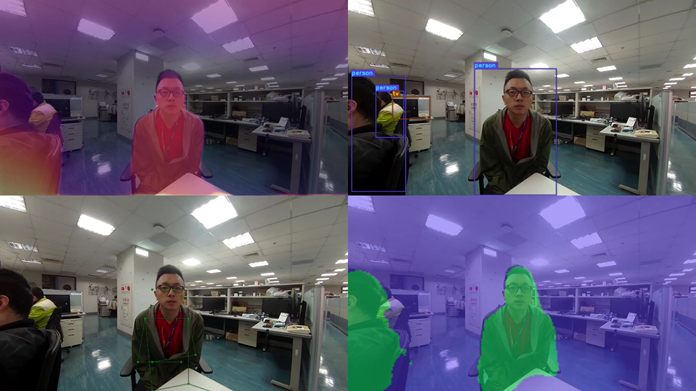
Running 4 different AI models simultaneously with the demo application.
Steps
-
Create a script
init.shto configure the Wayland display environment1 for the demo:Then you can source the script in your terminal:
-
Run the inference demo application. The applications are installed to
/usr/bin, so you can run them directly with: -
The application will prompt you to select the camera device, format, resolution, framerate, and video encoder.
It's strongly recommended to use the following settings:
Abnormal phenomenons may occur sometimes when using other resolutions.
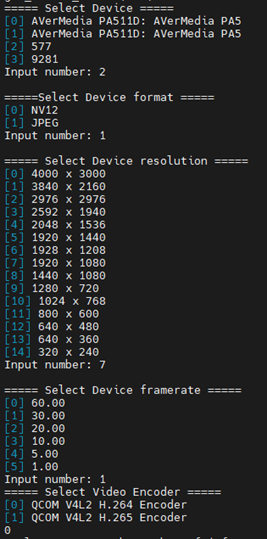
Configure the camera following the instructions.
-
Specify the number of inferences. It should be between 1 and 4.
-
For each inference, select the configuration file from the list.
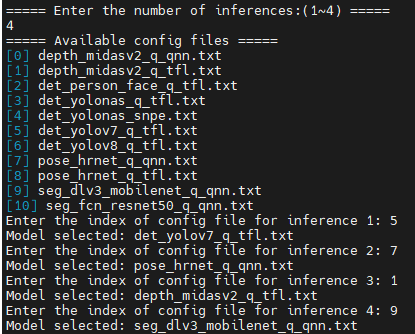
The application will list the available configuration files in
/opt/demo/configdirectory. All you need to do is to select one of them for each inference.Recommended AI Models for Demo
Note: Classification models are not recommended as they are trained on ImageNet and are difficult to use directly.
Category Models Depth Estimation Midas-V2-QuantizedObject Detection Yolo-NAS-Quantized,YOLOv11-Detection-Quantized,Person-Foot-Detection-QuantizedPose Estimation HRNetPoseQuantizedSegmentation DeepLabV3-Plus-MobileNet-Quantized -
(
infer_demoonly )
) infer_demosupports FPS calculation. It will prompt you to select whether to enable FPS calculation and whether to calculate FPS for the video source or the inference.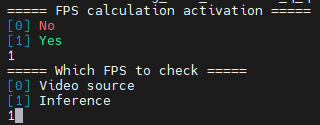
Configure the FPS calculation.
Results
The inference results are visualized in a split view as shown in the figure above. For infer_demo, the results are saved to a video file; for infer_switch_demo, the results are only displayed on the screen.
In addition, if the FPS calculation is enabled, the application will display the FPS values on the command-line interface.
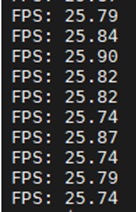
The FPS values displayed on the command-line interface.
Reconfigure AI Inference at Runtime
Warning
This feature is only available in infer_switch_demo.
You can reconfigure the AI inferences even if the application is running. All you need to do is to:
- Type
switchand press Enter. - The application will prompt you to enter the number of inferences and select the configuration files for each inference again.
- The preview window will be updated with the new configuration.
-
The Wayland environment variables are required for all the demos, even when there's no visual display output, as they are essential for proper initialization of some underlying AVT SDK components and plugins. In general, it is recommended to always set them to prevent any potential issues. ↩